How to Point Your Domain to DigitalOcean Nameservers | Step-by-Step Guide
January 31, 2026•Server
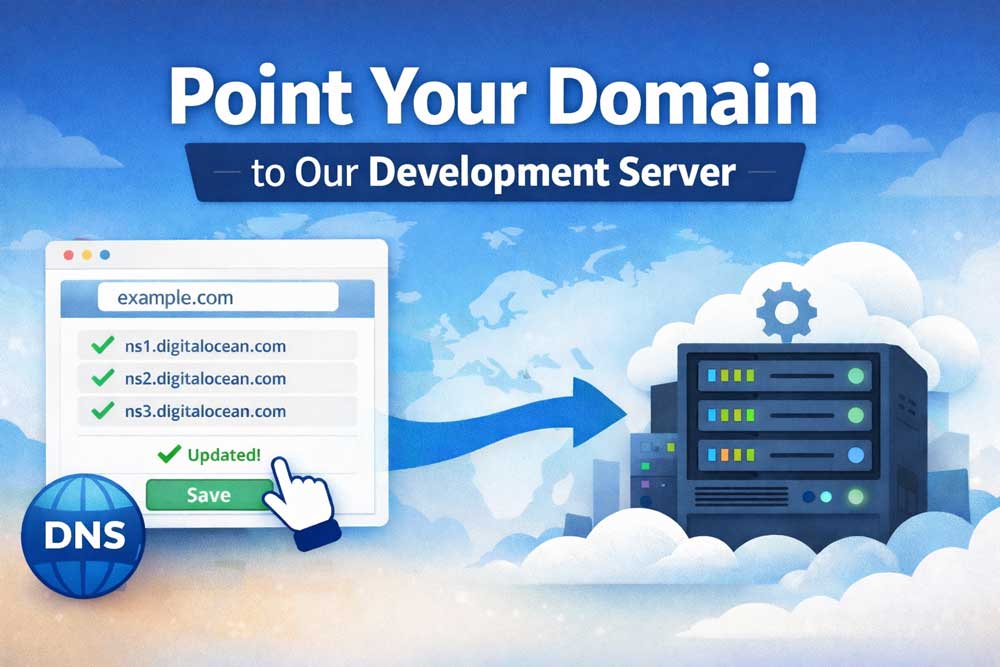
Learn how to point your domain to our server using DigitalOcean nameservers. Includes specific instructions for GoDaddy, Namecheap, and more.
Guide: How to Point Your Domain to Our Development Server
Setting up your domain is the first major step in bringing your website to life. By pointing your domain to our server, you allow us to handle the technical configuration while you maintain full ownership of your domain name.
🕒 Before You Begin
DNS changes typically take 30 minutes to 4 hours to take effect (a process called propagation). In rare cases, it may take up to 48 hours.
🛠 The 3-Step Process
-
Log In to Your Registrar
Access the account where you purchased your domain (e.g., GoDaddy, Namecheap, Google Domains). -
Locate Nameserver Settings
Look for sections like DNS Management, Nameservers, or Manage Domain. Choose the option to use Custom Nameservers. -
Enter Our Nameservers
Replace any existing nameservers with the following:ns1.digitalocean.comns2.digitalocean.comns3.digitalocean.com
🔗 Provider-Specific Instructions
| Domain Provider | Direct Support Link |
|---|---|
| GoDaddy | Change nameservers for my domains |
| Namecheap | How to Change DNS for a Domain |
| Google Domains | Manage Google Domain Name Servers |
| Bluehost | How to Update Nameservers |
| Domain.com | How to Update Nameservers |
✅ Next Steps
- Notify us: Send us a quick message so we can monitor DNS propagation.
- Verify: Check status using WhatsMyDNS.net (select NS from the dropdown).
Questions? If you’re stuck or don’t see your provider listed, reach out to our support team and we’ll walk you through it.